How to Create AI UGC Ads With ElevenLabs and fal.ai
Create AI UGC-style app ads with ElevenLabs voiceovers, fal.ai lip sync, real product screenshots, and reusable hooks. My Heirloom workflow, with a video example.
On this page
- A finished AI presenter ad for Heirloom
- 1. Write a brief before generating anything
- 2. Split the script into a hook and a reusable body
- 3. Generate the ElevenLabs voiceover with timestamps
- 4. Animate a fixed portrait with fal.ai
- 5. Add real product screens and captions
- 6. Reuse the body to reduce generation work
- What this workflow does—and what to measure
Making AI UGC-style ads for an app takes more than generating someone talking to a camera. The viewer needs to recognize a problem, see the product, and understand what to do next.
I use ElevenLabs for narration, Creatify Aurora through fal.ai for the AI presenter, and FFmpeg for the final edit. My private toolkit, UGC Machine, connects those steps and lets me reuse the main video while trying different opening hooks.
Here is the workflow, using Heirloom, my old-letter-reading app, as the example. You can adapt the same structure to your own app or product.
A finished AI presenter ad for Heirloom
The clip runs about 24 seconds. It opens with finding old letters in the attic, shows the app’s scan and reading screens, and ends with one App Store instruction.
UGC means user-generated content. Here, “AI UGC” describes the conversational video format; the presenter is synthetic. That distinction matters when writing the script.
My earlier Heirloom post covers the broader marketing approach and an animated-letter example. This tutorial explains the voice-and-presenter production pipeline.
1. Write a brief before generating anything
Start with four things: who the viewer is, the problem they recognize, the feature you can demonstrate, and the next action.
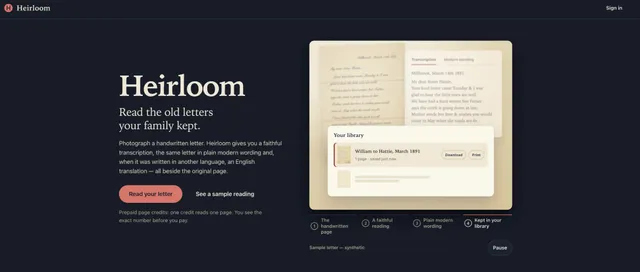
For Heirloom, the viewer might have inherited handwritten letters they struggle to read. The demonstration shows photographing a page and checking a transcript against the original. The app can also provide plain modern wording and an English translation for writing in another language.
If that sounds useful for your own family archive, you can explore Heirloom or Heirloom on the App Store.
For your product, choose one useful flow. Keep the script’s claims within what the product actually does.
2. Split the script into a hook and a reusable body
The hook gets attention. The body explains the product and shows the relevant screens. The closing line gives the viewer one next step.
Here is a shorter script you can adapt, based on the same Heirloom flow:
Hook: Found old letters in the attic? Don’t toss them yet.
Body: Heirloom helps you read old handwriting. Photograph the page, then check the transcript against the original. You can also see the letter in plain modern wording.
Close: Search Heirloom Old Letter Reader on the App Store.
I save each spoken segment with the screenshot it should show. That makes editing a matter of matching the words to the right product screen.
Three openings from my existing script batches illustrate different angles:
- “Just found old letters in the attic? Don’t toss them yet.”
- “Can’t read cursive? Then your family’s old letters are basically locked.”
- “Cleaning out Grandma’s house? Don’t toss the letters.”
To compare openings, keep the body and destination consistent. These are examples to test, not claims about which hook will produce more downloads.
3. Generate the ElevenLabs voiceover with timestamps
My renderer calls ElevenLabs’ text-to-speech endpoint with timestamps and saves both the MP3 and its alignment data. The alignment contains character timings; my script groups those into words for captions. ElevenLabs speech-with-timing documentation
That saves manually timing every caption. It also helps establish when each product screenshot should appear.
Listen to the voiceover before generating the presenter. Check names, pacing, pronunciation, and whether the closing instruction is clear. A script that reads well on paper can still sound rushed aloud.
Save the audio you approve. The next step needs that exact recording.
4. Animate a fixed portrait with fal.ai
I choose one presenter portrait and reuse that image. The portrait-generation script uses FLUX through fal.ai, but the important decision is selecting a consistent starting image.
Then the renderer sends the portrait and approved audio to fal-ai/creatify/aurora. Aurora takes an image and an audio file to generate a talking avatar video. Creatify Aurora on fal.ai
The division of work is straightforward: ElevenLabs supplies the voice and timing; Aurora supplies the speaking presenter. Review the generated movement and lip sync before building the final edit.
5. Add real product screens and captions
FFmpeg combines the presenter video, narration, and screenshots into a 1080 × 1920 vertical video. My renderer supports a split layout and a presenter bubble over product screens.
The opening text appears immediately. Short caption groups follow the narration, and an end card replaces the captions during the closing instruction.
Use actual product screens for the demonstration. Generating an imaginary interface would make it harder for the viewer to understand what they will get. Show the scan screen when the script mentions taking a photo, then show the transcript when it describes the result.
Watch the finished video with sound and muted. Check readability, cropping, and whether the pictures match the words. I disclose the synthetic presenter and voice in the accompanying copy; this blog example includes that disclosure directly beneath the player.
6. Reuse the body to reduce generation work
This is the most useful part of my setup. The toolkit caches the body’s audio and presenter video. Each new opening gets its own narration and lip-sync render, then joins the existing body.
For a hypothetical 20-second body and three 3-second hooks, generating three complete videos would mean 69 seconds of lip-sync generation. Generating the body once plus the three hooks means 29 seconds.
At Aurora’s listed 720p rate of $0.14 per generated second, that is approximately $9.66 versus $4.06 for lip sync alone, assuming those exact whole-second durations. fal rounds fractional video seconds upward. This is an illustrative calculation, not my measured bill; it excludes voice generation, portraits, retries, and other costs. Check current Aurora pricing before budgeting.
Caching also keeps the main explanation consistent while you change the opening. Review the join: a sudden shift in voice delivery or pose can make the edit distracting.
What this workflow does—and what to measure
This pipeline gives me a repeatable way to produce promotional videos. It does not establish that an ad will convert, or that views caused an increase in downloads.
For a first batch, make one clear demonstration and three openings. Review the clips, publish the ones you approve, and track what viewers do next: visit the product page, click through to the store, or try the product. Keep video performance and product conversions distinct when interpreting the numbers.
If you want to extend the same footage across platforms, my one app demo, three feeds guide covers that part of the process.
Technical details were checked against my local UGC Machine code and the linked vendor documentation on October 7, 2026. Prices and API options can change.